How to install Quokit on iPhone or Android
Install the Quokit web app from Safari or Chrome, understand what installation changes, and fix a missing install option.
productinstall Quokitwishlist app
Bob, Quokit · 23 June 2026
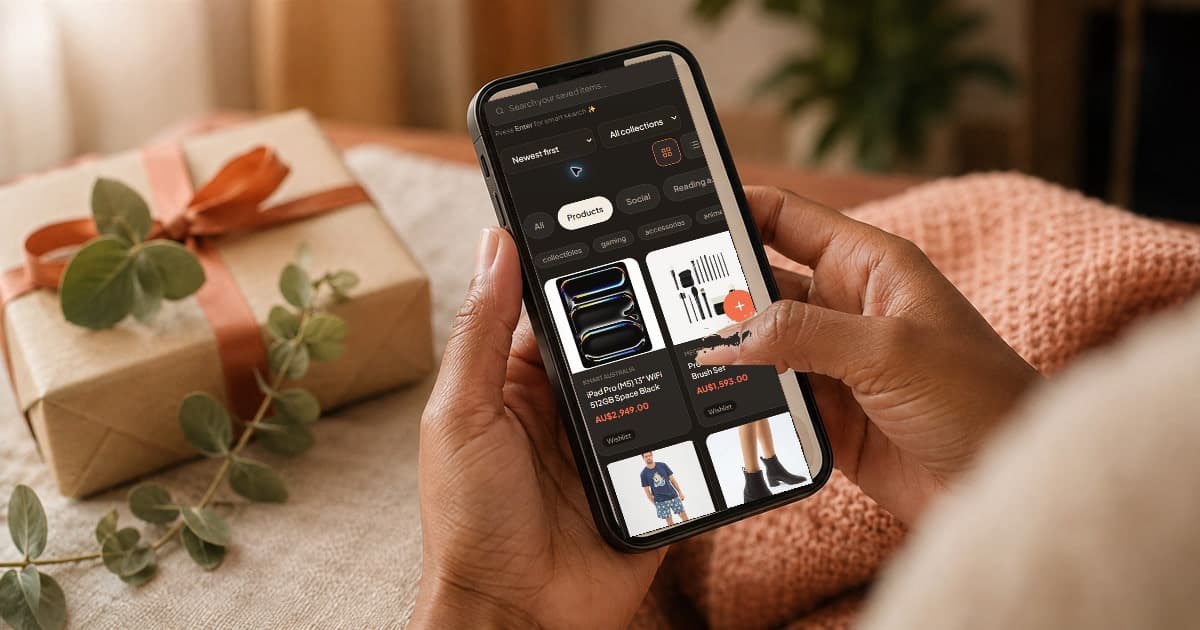
Quokit does not need an App Store download. It is an installable web app, which means your browser can add an icon to the home screen and open Quokit in its own window.
Installation improves access. It does not make private lists available offline.
Open Quokit from the new home-screen icon. If you used another browser and cannot find the option, repeat the steps in Safari.
Practical takeaway: Use Safari for the most direct iPhone home-screen installation flow.
The Quokit icon should appear with your other apps. Some Android launchers place new icons on a later home-screen page or only in the app drawer.
Practical takeaway: Look for either Install app or Add to Home screen in Chrome.
Quokit opens in a standalone window and is easier to reach from your home screen. It remains the same account and web service as the browser version.
My opinion is that installation is worthwhile if you save ideas weekly. If you use Quokit twice a year, a browser bookmark may be enough.
The common assumption is that an installed web app works like a fully offline native app. Quokit's current service worker provides an offline fallback page. It does not cache private lists, items or occasions for offline reading, and offline changes do not sync later.
Practical takeaway: Install for quick access, not for offline list storage.
First, confirm you are using Safari on iPhone or Chrome on Android and that the page has loaded over a working connection. Refresh once and reopen the browser menu.
If Quokit is already installed, the browser may hide the install option. Search the device for Quokit before clearing site data. Managed work devices can also restrict home-screen installation.
Do not clear all browser data as a first step. That can sign you out of unrelated services. Use browser-specific site settings only when the normal steps keep failing.
Practical takeaway: Check the browser, existing installation and device policy before clearing data.
Install Quokit using the steps for your device, open it from the new icon and confirm you can reach your lists while online. For more detail, use the home-screen installation help or join the beta.
Practical takeaway: Verify the installed icon and one online list before relying on it.
Quokit is currently installed from a supported web browser rather than downloaded from those stores.
No. Sign in with the same Quokit account you use in the browser.
No. The current offline experience is a fallback page, not cached access to private lists or items.
© 2026 Quokit. All rights reserved.