Saving products with right-click
Use the Quokit Chrome context menu to open a save popup prefilled with the page or link URL.
Published 4 July 2026
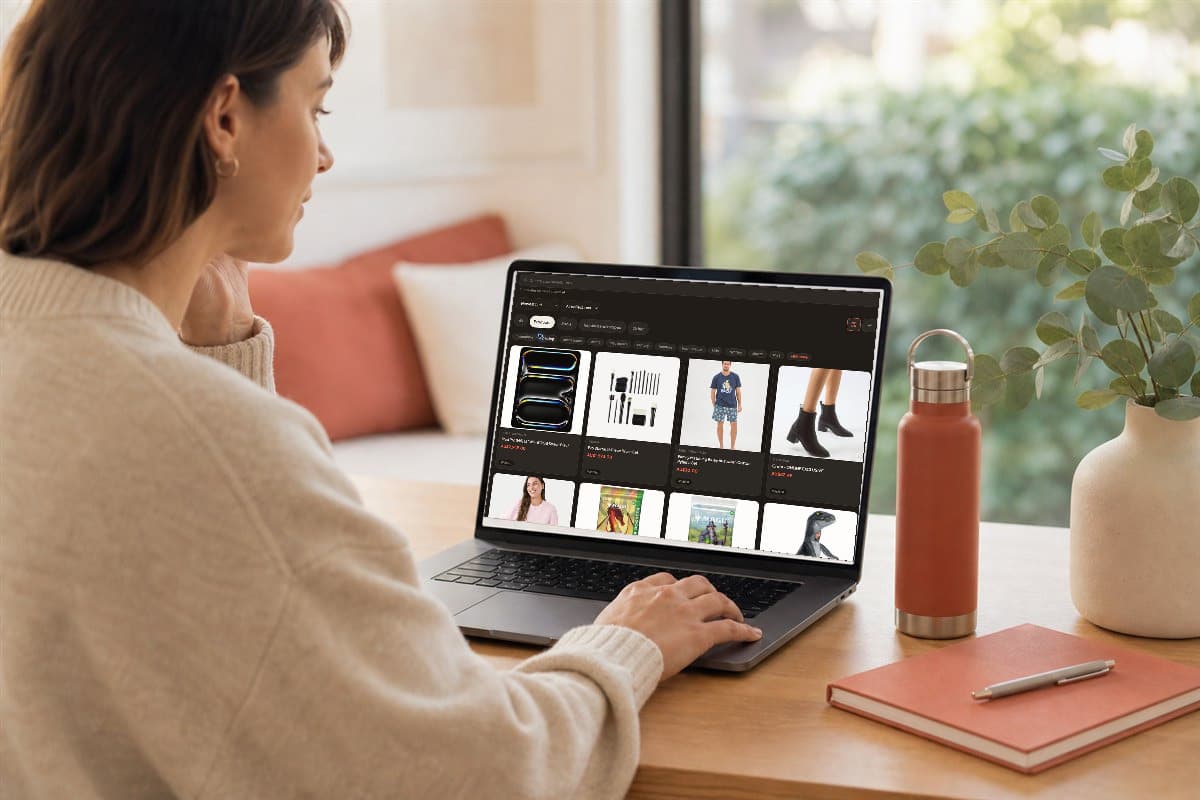
Use the Quokit Chrome context menu to open a save popup prefilled with the page or link URL.
Published 4 July 2026
The right-click action saves copying a URL. It opens a Quokit popup where you review and confirm the save.
The context-menu action does not immediately create the item before you confirm.
The extension may prefill the clicked image URL rather than the product page. Check the URL shown in the popup. Cancel and open the toolbar popup from the product page if the image URL is not the item you want to save.
Confirm that the extension is enabled in chrome://extensions, then reload the product page. Managed browser policies or another extension can also affect context menus.
Some pages load product data dynamically or block metadata access. A correct product-page link can still be useful. Open the saved item in Quokit and add available notes or corrections after saving.
There is no permanent “always works” retailer list. Test the exact public product page. Protected, sign-in-only, PDF and Chrome internal pages are poor save targets.
© 2026 Quokit. All rights reserved.